LinchStone home

Phone remote for your PC’s AI

Your PC runs the AI. LinchStone puts it in your pocket.

LinchStone is a phone remote for the AI tools already installed on your Windows PC. Chat with your local models, generate images, run multi-step chains and browse the results, at home or away. There’s no LinchStone account and no LinchStone server: the phone talks straight to your own PC.

Not ready to set up your PC? Try the demo in the app.

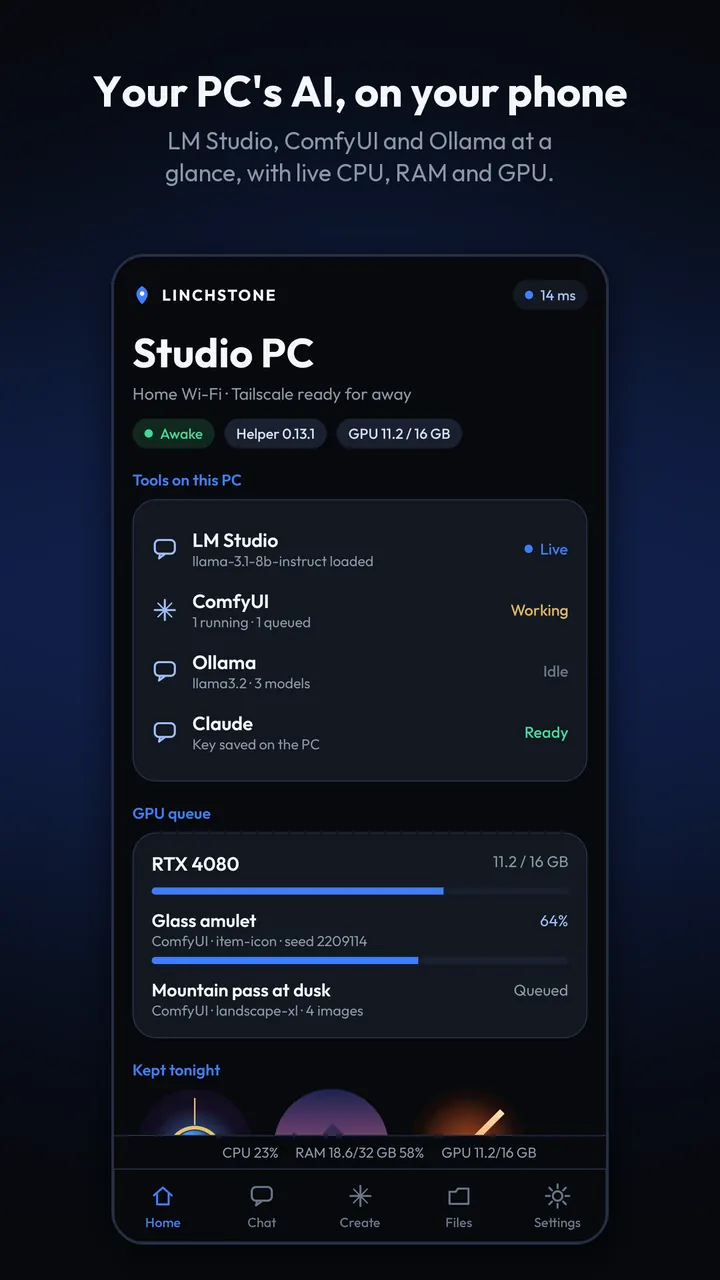
Screenshot of the LinchStone home screen for a PC named Studio PC: LM Studio, ComfyUI, Ollama and Claude listed with their status, a GPU queue, and CPU, RAM and GPU use at the bottom.

What you can do

Everything runs on your PC. The phone is the remote.

Chat with your local models

  • Chat with local models in LM Studio or Ollama, including vision models you can send a photo to
  • Dictate prompts by voice, or attach a photo from your camera or gallery
  • Share a photo or text from any app straight into LinchStone
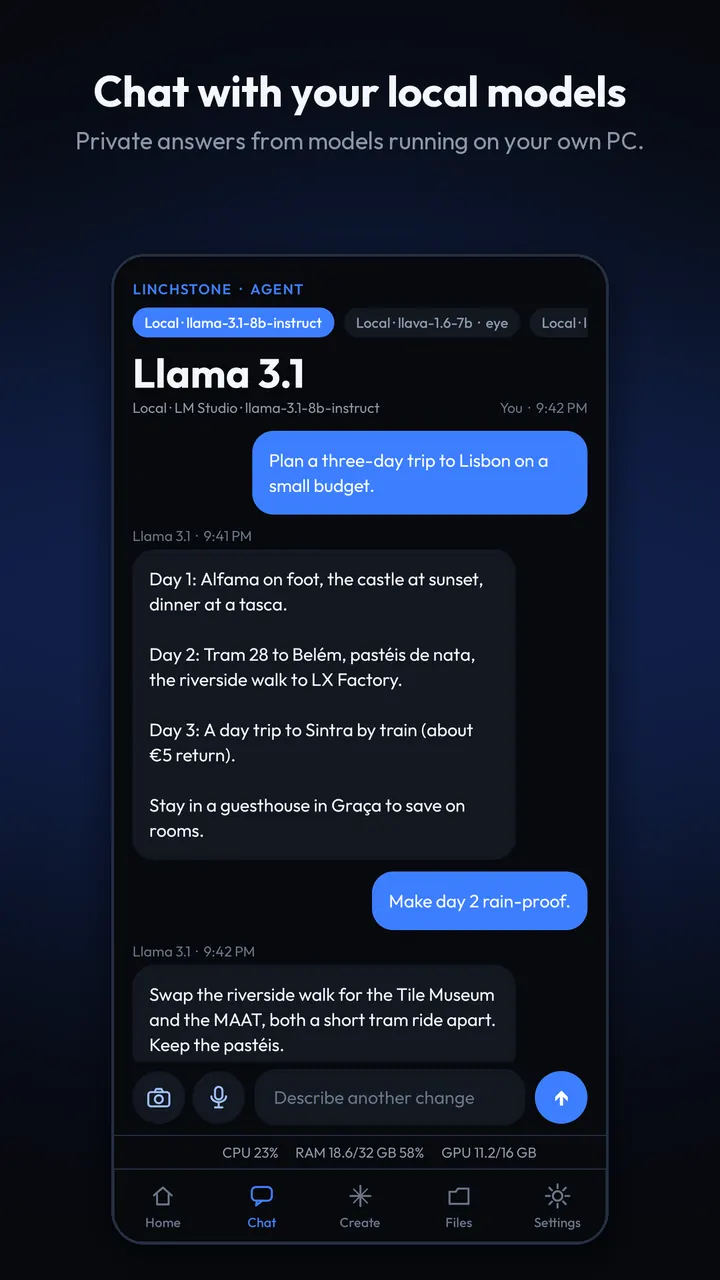
Screenshot of LinchStone Chat: a conversation with a Llama 3.1 model running in LM Studio on the PC, with camera and microphone buttons by the message box.

Generate images on your own GPU

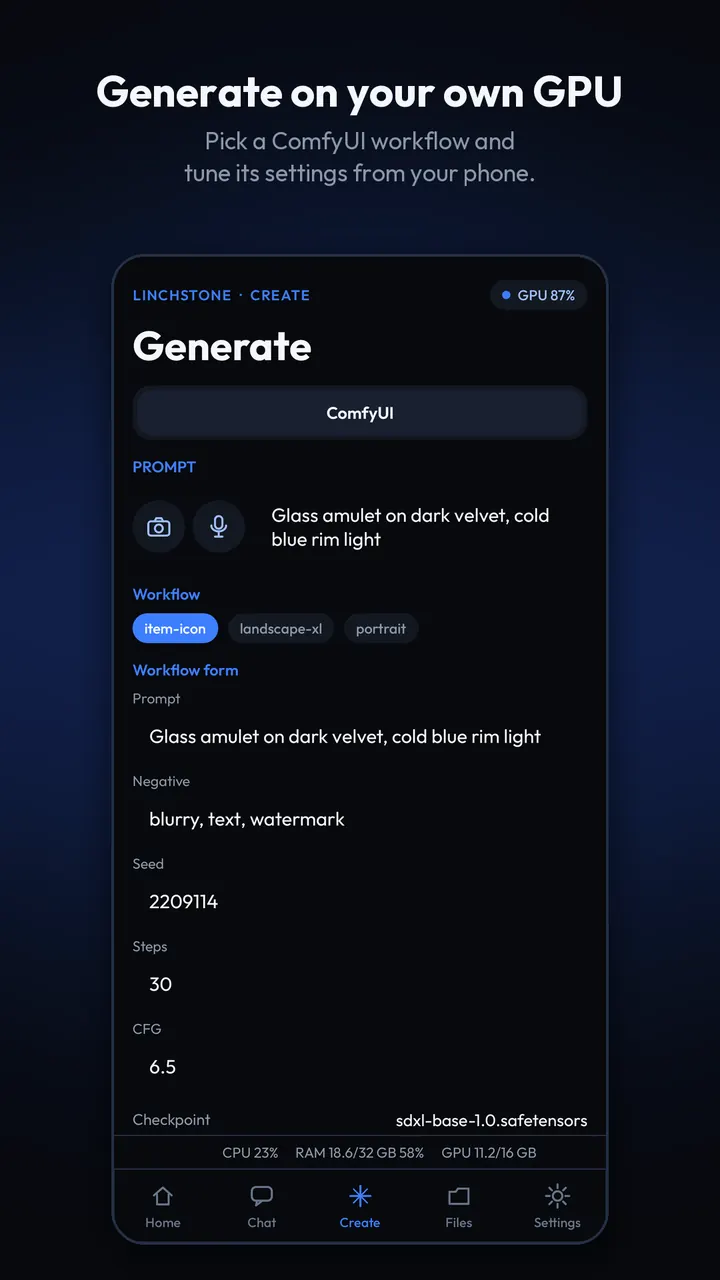
  • Generate images with ComfyUI or Amuse, using simple forms instead of node graphs: prompt, seed, steps, model and LoRA pickers
  • Compare two models, LoRAs or seeds side by side and keep the winner
Screenshot of LinchStone Create: a ComfyUI workflow form with prompt, negative prompt, seed, steps, CFG and checkpoint fields.

Chain tools into one run

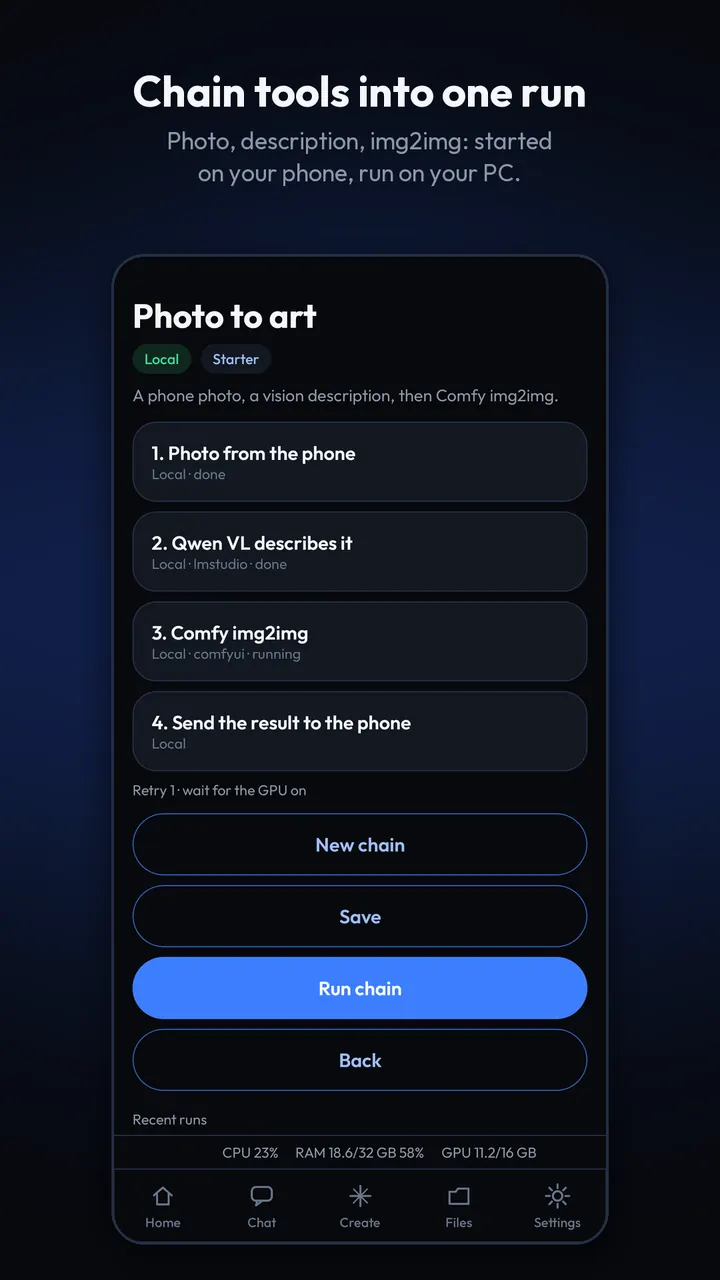
  • Run chains: multi-step jobs like “describe this photo, expand the prompt, generate, pick the best”
  • Get a notification when a job finishes, with quiet hours
Screenshot of a LinchStone chain called Photo to art, with four steps: photo from the phone, a vision model describes it, ComfyUI img2img, and send the result to the phone.

Your outputs, from your PC

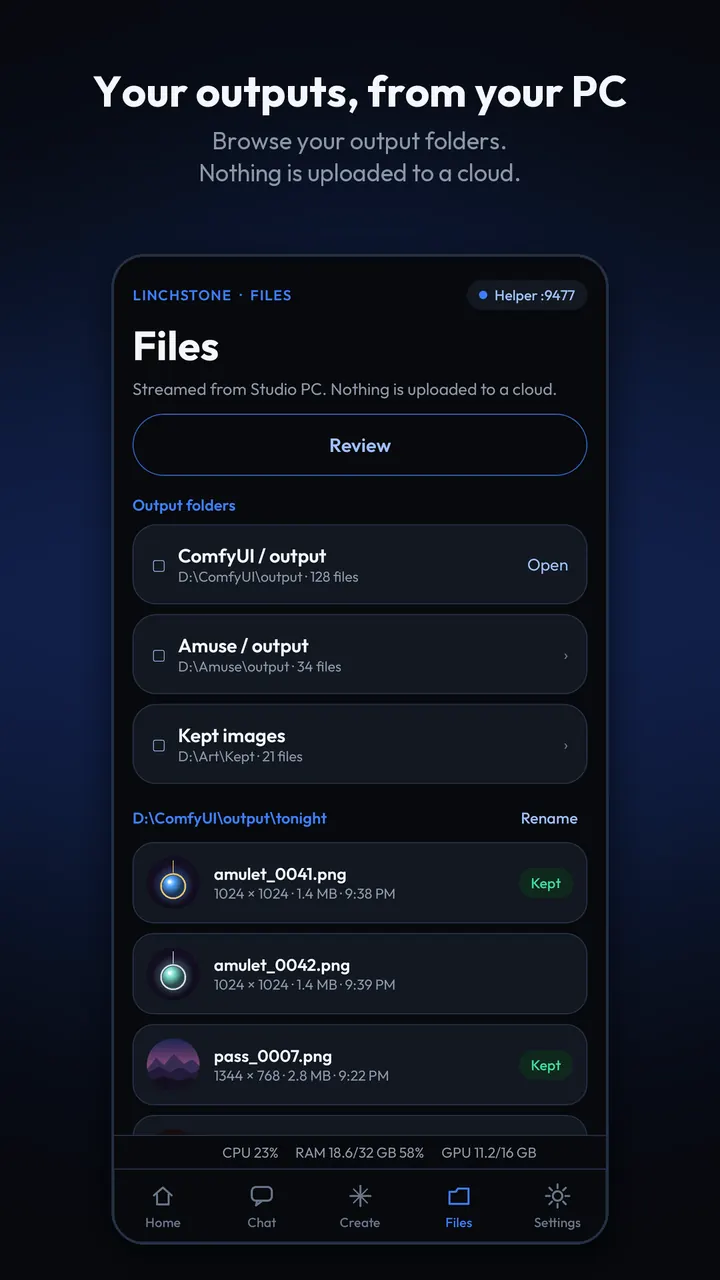
  • Browse your PC’s output folders, mark the best results as keepers and copy them to a folder you choose (nothing is moved or deleted)
  • Watch CPU, RAM and GPU use on the PC
Screenshot of LinchStone Files: output folders for ComfyUI and Amuse on the PC, a Kept images folder, and recent images marked as kept.

Local tools, your own keys

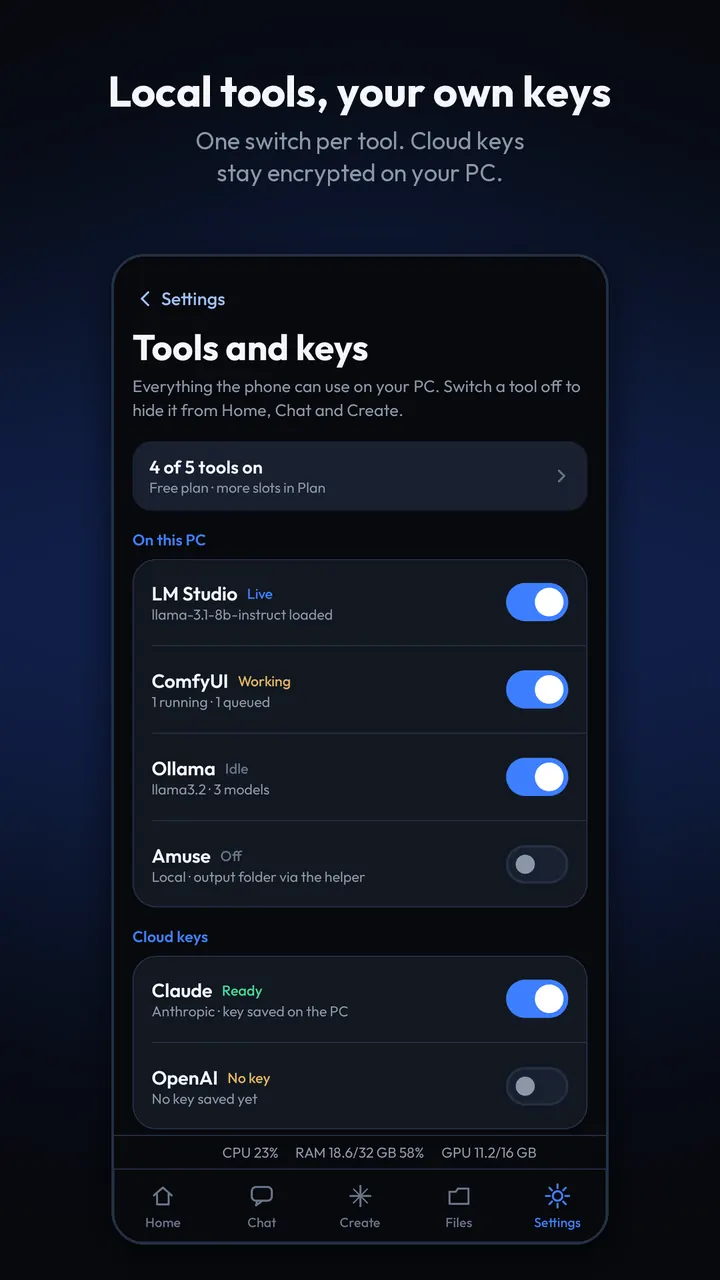
  • One switch per tool, for the tools on your PC
  • Optional cloud models with your own API keys, with a monthly spend tracker
  • Cloud API keys are encrypted on your PC and never stored on the phone
Screenshot of LinchStone Tools and keys: switches for LM Studio, ComfyUI, Ollama and Amuse on the PC, and cloud keys for Claude and OpenAI.

Pair in seconds. No account.

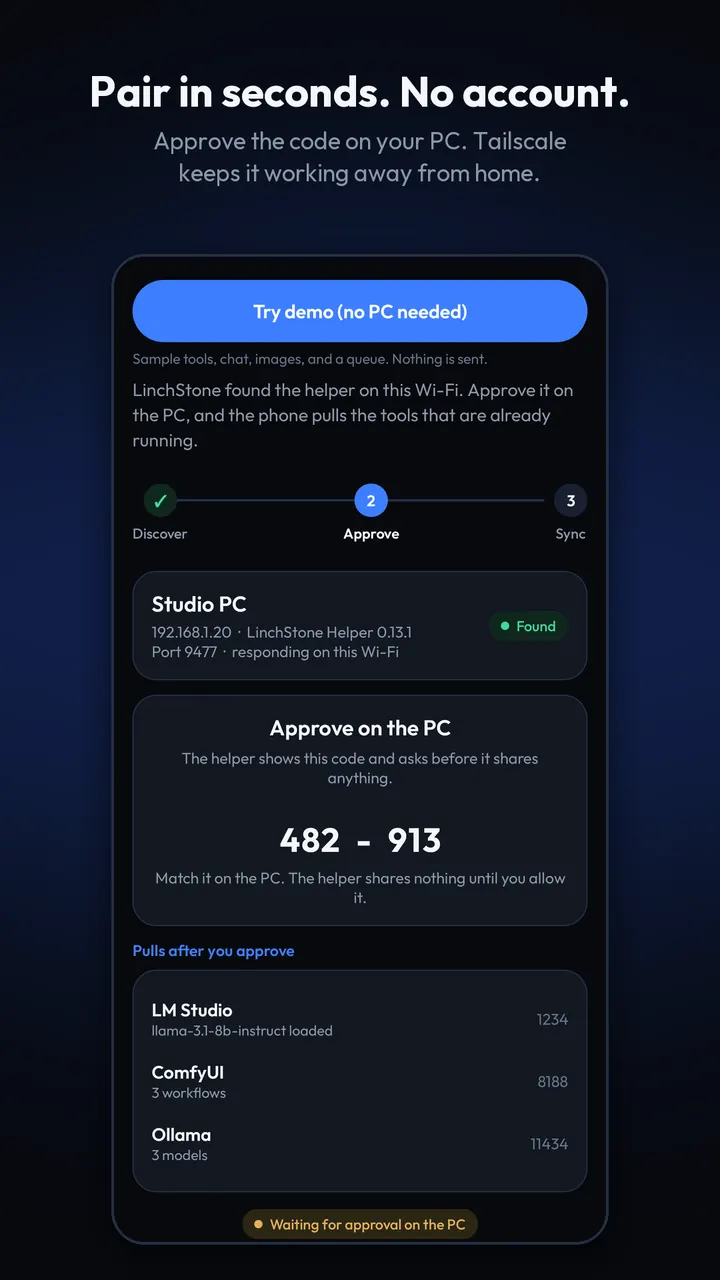
  • Pair with a QR code on your home Wi-Fi. A new phone is only paired after you approve it on the PC
  • Away from home, connect through Tailscale (or Headscale/WireGuard), with no ports opened to the internet
Screenshot of LinchStone pairing: the phone has found Studio PC on the Wi-Fi and shows the code 482-913 to approve on the PC.

Works with

Local chat
LM Studio, Ollama, and other OpenAI-compatible local servers
Image generation
ComfyUI, Amuse
Cloud (optional, your own key)
OpenAI, Anthropic Claude, Google Gemini, xAI, Mistral, OpenRouter
Remote access
Tailscale, Headscale, WireGuard

LinchStone is an independent app and is not affiliated with or endorsed by these projects or companies.

Private by design

  • No account, no sign-up, no LinchStone server
  • Pair with a QR code on your home Wi-Fi. A new phone is only paired after you approve it on the PC
  • Away from home, connect through Tailscale (or Headscale/WireGuard), with no ports opened to the internet
  • Cloud API keys are encrypted on your PC and never stored on the phone
  • App lock, screenshot blocking, private notifications and encrypted saved chats
  • Local tools stay on your PC. Cloud tools send only the steps you run to the provider you chose

Read the privacy policy

What you need

  • A Windows PC running your AI tools (LM Studio, Ollama, ComfyUI or Amuse)
  • The free LinchStone Helper for Windows, from the Microsoft Store
  • The PC must be on and awake while you use the app

Available in 8 languages. Read the setup guide

Pricing

Free includes 5 tools and 5 saved chains. Need more? Two one-time purchases, no subscription.

Free

$0

5 tools and 5 saved chains

10 Tools

$4.99

10 tools and 10 saved chains

One-time

Prices in US dollars; Google Play shows the price for your country. Purchases stay with your Google account if you reinstall.

Get started

Install the app on your Android phone and the helper on your Windows PC, then pair them on your Wi-Fi.

Not ready to set up your PC? Try the demo in the app.